

BIOS (Basic Input Output System)

zjhl2lgef9cyrql0jfa7kzbw2vucrb5knhfe1td9oxde9g5shnn1i-bv9ettdv9dsbugw0py
BIOS (Basic Input Output System)

  • BIOS is the program a computer’s microprocessor uses to get the computer system started after you turn it on.

  • It also manages data flow between the computer’s operating system and attached devices such as the hard disk, graphic card, keyboard, mouse and printer.

  • BIOS is a chip located on all motherboard that contain instruction of how your system should boot and how it operate.

  • The BIOS include instruction on how to load basic computer hardware & include a test referred as a POST that verifies the computer needs requirement to boot up properly.

  • If the computer does not pass the POST, you will receive a combination of beep indication that indicates malfunctioning within the computer.


POST:

  • POST is a test the computer must complete to verify all hardware is working properly before starting the remainder of the boot process.

  • If the computer passes the POST the computer will often return a single beep and if unsuccessful will create a beep code that indicates the error.


What do you meant by the term ROM BIOS (Read Only Memory BIOS)?

  • Read only means that the Program and data can only be read from it. Therefore Program and data cannot be written to it.

  • Most Computer contain small amount of ROM to stores programs that enable the computer to boots.

  • It is a non- volatile memory and hence it is referred as a permanent data storage area.

  • The BIOS in a PC is stored on a ROM chip located on the motherboard.

  • Early PCs used a ROM BIOS, but PCs today use a flash memory BIOS because it can be updated in place.

  • In order to update a ROM BIOS, the computer case had to be opened, and the ROM chip had to be located and replaced.


How do I get to BIOS in Windows 7?

  • Turn off the computer and wait five seconds.

  • Now turn on the computer and immediately press the F10 key or F1 key  three to four times after you see company logo on display until a BIOS Setup screen opens.
  • In the BIOS Setup utility, do one of the following: On the Main tab, find the BIOS version.

Note: – Different Company models Had Different Keys to go in Bios Screen Option.


What do mean by Dual BIOS?

  • Dual BIOS mean there are two ROM Bios IC Chip present on the Motherboard.

  • A dual BIOS is a computer motherboard that contains a main BIOS and a backup BIOS.

  • This type of setup can help a motherboard recover from any problems encountered during a BIOS update.

  • It also helps protect the BIOS from any potential virus, or any other data corruption that might occur.

View BIOS information at POST
hf

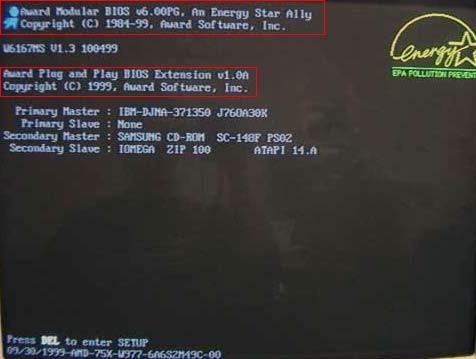
  • The first way is by restarting your computer.
  • When the initial load (also called POST) screen is displayed, the BIOS Type and version is also displayed.
    Tip: If the load screen is displayed for only a few seconds, you can try pressing the Pause/Break key on your keyboard to pause the loading process.
  • The BIOS information is typically found at or near the top of the POST screen.
  • Also, you will see information on what hard drive(s) and CD/DVD drives are installed in your computer.


Through Windows System Information
fhg

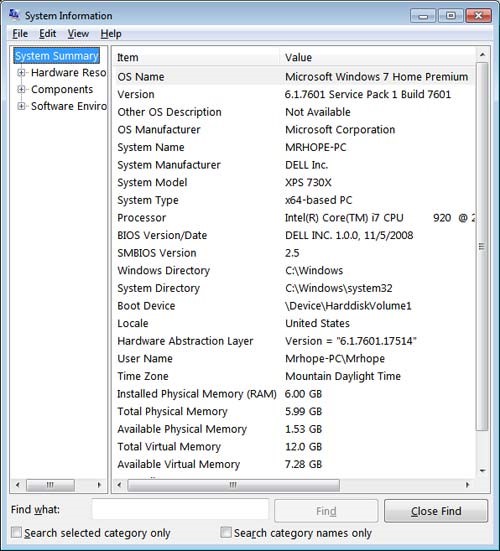
  • The BIOS information is also shown through the Windows System Information.
  • To open this tool click start, Programs, Accessories, System Tools, and then System Information.
  • If you’re running Windows Vista or Windows 7, type System Information in the Start search box.
  • In the System Information window, displaying information about your computer, including the type of BIOS you have and the version, under the System Summary section.
  • As can be seen in the picture below, this computer has a DELL BIOS version 1.0.0 with a Date of 11/5/2008.


Windows Registry

iuy

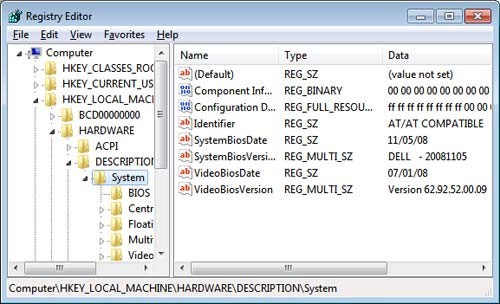
  • You can also find BIOS information in the Windows System Registry.

  • While in the registry realize that improperly changing a setting can affect how Windows operates.

  • To access the System Registry, click start and in the Run or Search box type reg edit in the text field and press enter. In the Windows Registry navigate to the below Registry directory.
    Hkey_local_machine\hardware\description\system

  • Find the sub keys System Bios Date and System Bios Version to see the BIOS and version for your motherboard. As can be seen in the picture below, the BIOS date and version are shown in these two keys.


Types of BIOS: –

  • Single Page BIOS.
  • Multi Page BIOS/ Five Page BIOS.
  • Explorer BIOS.
  • Phoenix BIOS.
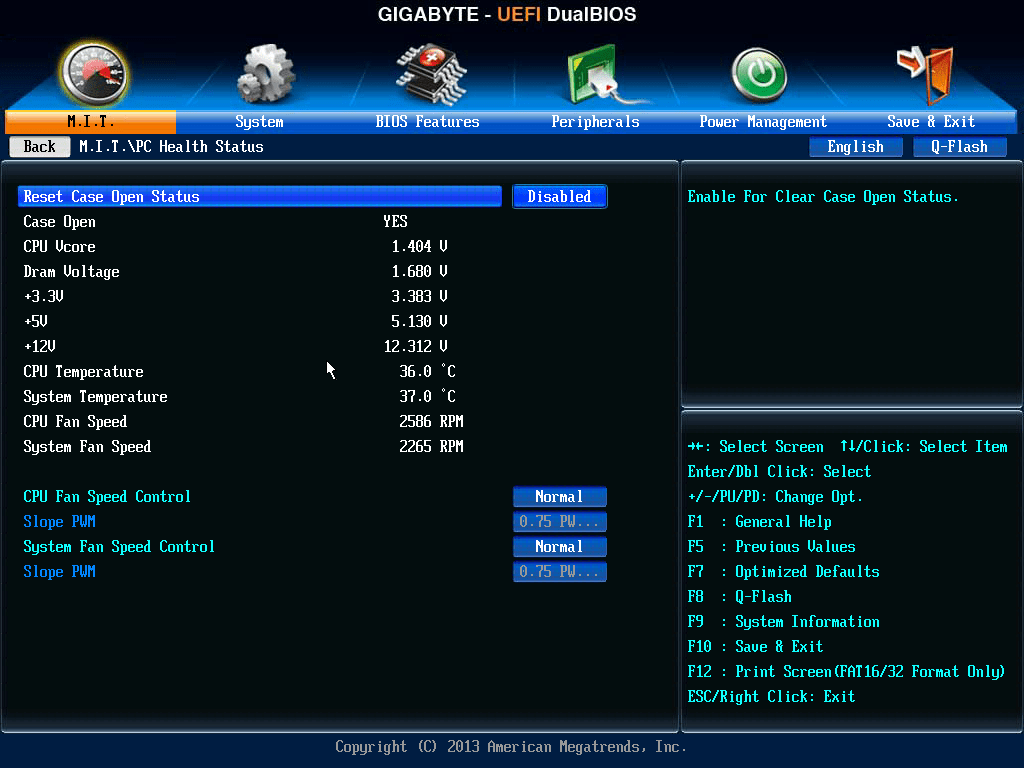
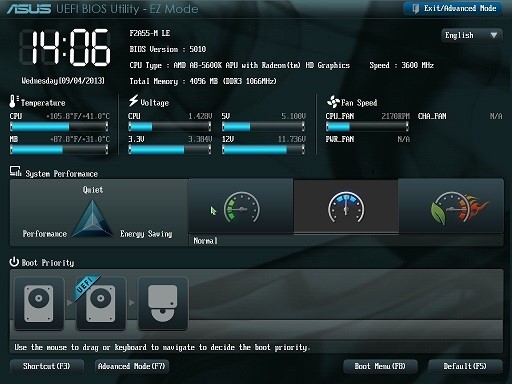
  • UEFI BIOS (Unified Extensible Firmware Interface).


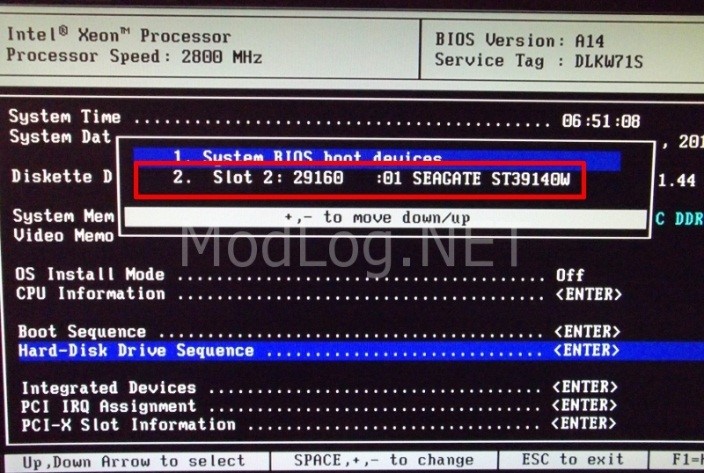
  1. Single Page BIOS: –

  • In Single Page Mode BIOS all the Option are in one single Page.

  • It can be seen in early 90’s computer.
erw


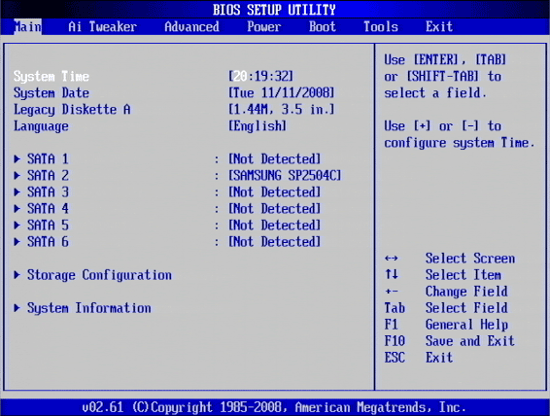
  1. Multi / Five Page BIOS: –

  • Multi page or Five page Mode BIOS has 5 different option namely Main, Advanced, Security, Boot, Exit.
rtre


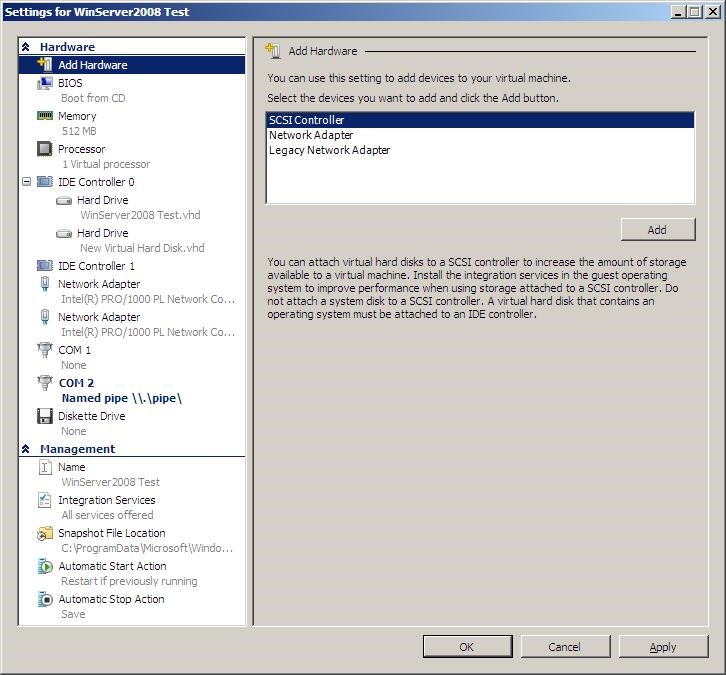
  1. Explorer BIOS:-

  • This BIOS is Windows Explorer Lookalike.

  • It is the only BIOS where we can use Mouse.
65y


  1. Phoenix BIOS : –

  • Phoenix BIOS is the commonly see BIOS in nowadays new and old Computer.
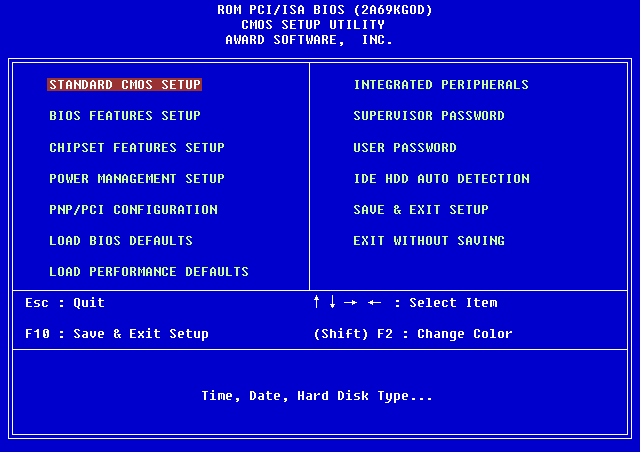
 

nm


  1. UEFI BIOS (Unified Extensible Firmware Interface): –

  • UEFI Bios is the latest Bios used in new computer.
  • UEFI Bios is mostly used in Windows 7, Windows 8, Windows 8.1 and Windows 10.

  • This bios help the computer to boot up faster than any other bios.
sdfs


gfhf


Network and its Types

  • Network:

A computer network or data network is a telecommunications network that allows computers to exchange data.

In computer networks, networked computing devices pass data to each other along data connections.

The connections (network links) between nodes are established using either cable media or wireless media.

The best-known computer network is the Internet.


  • Internetwork:

Internetworking is the practice of connecting a computer network with other networks through the use of gateways that provide a common method of routing information packets between the networks.

The resulting system of interconnected networks is called an internetwork, or simply an internet.

Internetworking is a combination of the words inter (“between”) and networking; not internet-working or international-network.


  • Intra Network:

An intranet is a computer network that uses Internet Protocol technology to share information, operational systems, or computing services within an organization.

This term is used in contrast to extranet, a network between organizations, and instead refers to a network within an organization.

Sometimes, the term refers only to the organization’s internal website, but may be a more extensive part of the organization’s information technology infrastructure, and may be composed of multiple local area networks.

The objective is to organize each individual’s desktop with minimal cost, time and effort to be more productive, cost efficient, timely, and competitive.


  • Extranet:

An extranet is a computer network that allows controlled access from the outside, for specific business or educational purposes.

In a business-to-business context, an extranet can be viewed as an extension of an organization’s intranet that is extended to users outside the organization, usually partners, vendors and suppliers, in isolation from all other Internet users.

In contrast, business-to-consumer (B2C) models involve known servers of one or more companies, communicating with previously unknown consumer users.

 An extranet is similar to a DMZ in that it provides access to needed services for channel partners, without granting access to an organization’s entire network.


  • Topology:

Topology means structure of Network.

Types of Networks:

  1. Single Node Topology

network-topologies-5-728

2. Bus Topology

bus-topology

  • Easiest network topology for connecting computers or peripherals in a linear fashion.
  • Requires less cable length than a star topology.
  • It works well when you have a small network.

    3. Ring Topology

    single-ring-topology

  • A network server is not needed to control network connectivity between each workstation.
  • All data flows in one direction, reducing the chance of packet collisions.
  • Data can transfer between workstations at high speeds.
  • Additional workstations can be added without impacting performance of the network.
  1. Star Topology

    220px-star_topology

  • As compared to Bus topology it gives far much better performance, signals don’t necessarily get transmitted to all the workstations. A sent signal reaches the intended destination after passing through no more than 3-4 devices and 2-3 links.
  • Performance of the network is dependent on the capacity of central hub.
  • Easy to connect new nodes or devices. In star topology new nodes can be added easily without affecting rest of the network. Similarly components can also be removed easily.
  •  Centralized management. It helps in monitoring the network.
     Failure of one node or link doesn’t affect the rest of network. At the same time its easy to detect the failure and troubleshoot it.


  1. Mesh Topology

    mesh-topology

    1) Data can be transmitted from different devices simultaneously. This topology can withstand high traffic.
    2) Even if one of the components fails there is always an alternative present. So data transfer doesn’t get affected.
    3) Expansion and modification in topology can be done without disrupting other nodes.


  1. Hybrid Topology

    index

  • Hybrid, as the name suggests, is mixture of two different things.
  • Similarly in this type of topology we integrate two or more different topologies to form a resultant topology which has good points(as well as weaknesses) of all the constituent basic topologies rather than having characteristics of one specific topology.
  • This combination of topologies is done according to the requirements of the organization.


  1. Tree Topology

    248198418

  • A tree topology is a special type of structure in which many connected elements are arranged like the branches of a tree. For example, tree topologies are frequently used to organize the computers in a corporate network, or the information in a database.
  • In a tree topology, there can be only one connection between any two connected nodes. Because any two nodes can have only one mutual connection, tree topologies form a natural parent-child hierarchy.


  • Network Device:

Equipment’s that connect directly to a network segment is referred to a device.

These devices are broken up into two classification:

  1. End-User Device

These are the device that include computer, printer, scanner, and other device that provides service directly to user.


  1. Network Device

These are the device that include all device that connects end-user device together to allow them to communicate.


To connect same device (Cross Crimping):

gjy1qoa

Eg: Hub to Hub or Switch to Switch.


Orange white                                       Green white

Orange                                                  Green

Blue white                                            Blue white

Green                                                    Orange

Green white                                         Orange white

Blue                                                        Blue

Brown white                                         Brown white

Brown                                                    Brown


To connect different device (straight crimping):

ethcable568b

Eg: Hub to PC or switch to PC


Orange white                                        Orange white

Orange                                                    Orange

Blue white                                              Blue white

Green                                                      Green

Green white                                          Green white

Blue                                                        Blue

Brown white                                        Brown white

Brown                                                    Brown