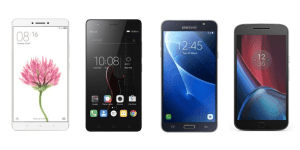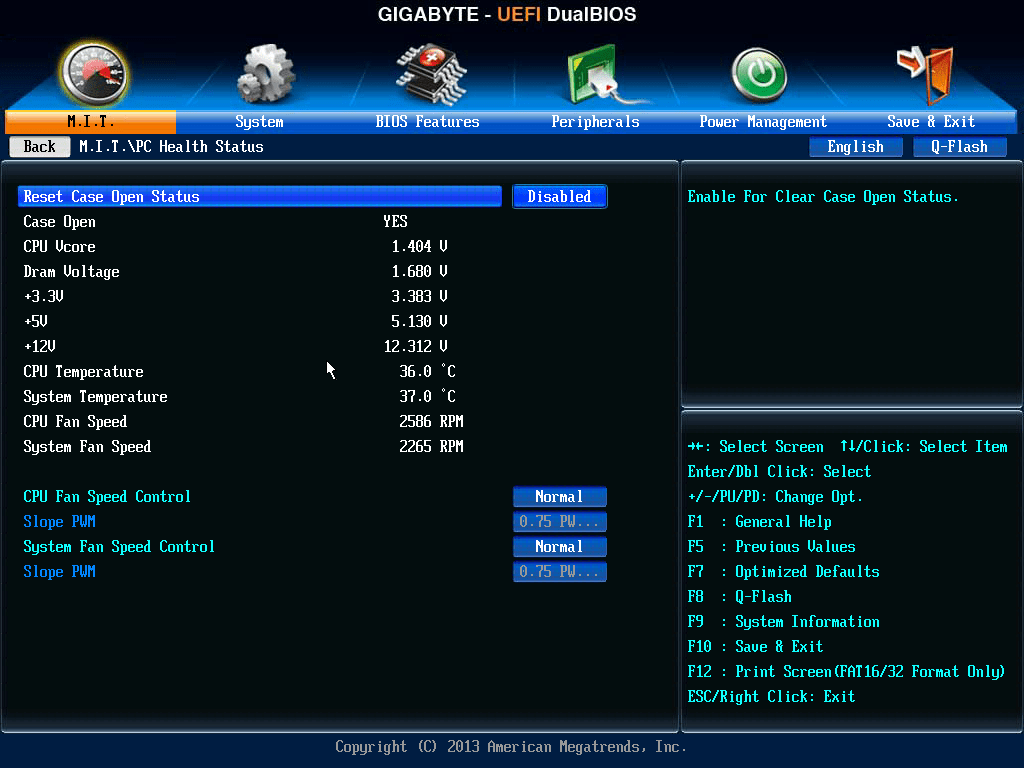

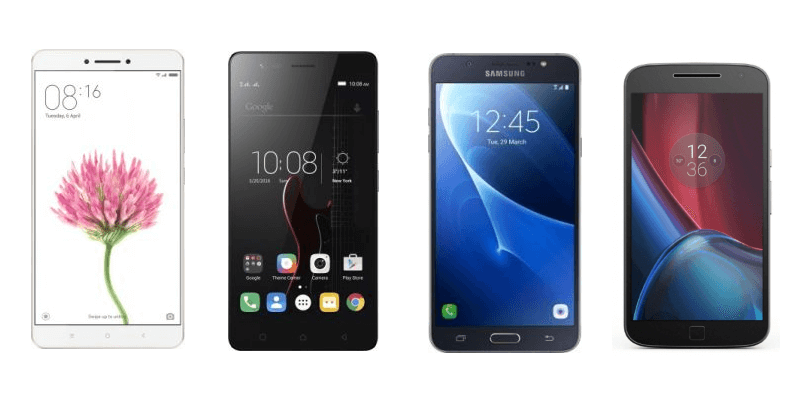
BEST PHONES UNDER 15,000 RS IN INDIA 2017

//pagead2.googlesyndication.com/pagead/js/adsbygoogle.js
best-phones-under-rs-15000


TOP BEST PHONES UNDER 15,000 RS IN INDIA  2017

  ØThinking of Buying an android smartphone under Rs. 15,000, then there are plenty of android Phones in the market.

  ØConsidering the price of the smartphone you can’t expect high performance specification.

  ØThis year Smartphone Company is mainly focusing on two main features smart phones that support 4G LTE connectivity and 720p displays resolution.

  ØSome smartphones offer decent cameras, quad-core chipset processor, 2GB Ram and a pretty good battery backup.

  ØLet’s take a look on the Android Smartphones you can buy this year
under 15,000 rs.

  1. Xiaomi Redmi Note 4


best-phones-under-rs-15000

Xiaomi has launched the cheapest 4G android phones in India.

This SmartPhone has a pretty good specification when price is considered.

You can’t buy this phone from mobile store; instead you have to buy this phone online.

Specification :-

  Ø 5.5 inch IPS Capacitive display screen with 1080 x 1920 pixel
display resolution.

  Ø Android 6.0 OS

  Ø 4G support

  Ø 2 GHz Snapdragon 625 Octa-Core Processor

  Ø 13 MP Rear and 5 MP front Camera

  Ø    64 GB internal storage

  Ø    4 GB RAM

  Ø   4,1000 mAH battery, non-removable

      Redmi Note 4 (Dark Grey, 64 GB) (4 GB RAM) – 12,990


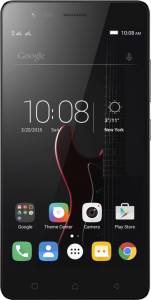
  1. Lenovo Z2 Plus

    lenovo-k5-note-pa330118in-original-imaekyaqxwzfhacu

     Lenovo is the other brand that has been releasing amazing handsets in this budget.

     Lenovo Z2 Plus is probably the best phone under 15,000 with decent features. 

Specification:-

  Ø 5 inch HD IPS display

  Ø Android Marshmallow 6

  Ø 2 x 1.6 GHz & 2 x 2.15 GHz Snapdragon 820 Quad core Processor

  Ø 13 MP Rear Camera

  Ø 8 MP selfie camera

  Ø 32 GB internal storage

  Ø 3 GB RAM

  Ø 3,500 mAh battery
                        Lenovo Z2 Plus (Black, 32 GB) (3 GB RAM)


  1. Moto G4 Plus
    motorola-moto-m-xt1663-original-imaep562bebk6hhg

     Motorola has introduce another amazing handset in the Rs. 10,000 to Rs. 15,000 price segment.

    Moto G4 is the one of the moto series model to get the Android Nougat Updates. 

Specification :-

  Ø Android 7 Nougat OS

  Ø Display 5.5 inch, IPS with 1080 x 1920 pixel display resolution

  Ø 16GB internal storage

  Ø 1.5 GHz & 1.2 GHz Coetex A53 Snapdragon 617 Quad-core
Processor

  Ø 2GB RAM

  Ø Camera 16MP rear and 5 MP front

  Ø Battery 3,000mAh,

                 Moto G Plus, 4th Gen (Black, 32 GB) – 15,999


                        Moto G Plus, 4th Gen (Black, 16 GB) – 12,499


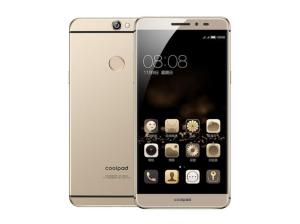
  1. CoolPad Max


510201662057PM_635_coolpad_max

Specification:-

  Ø 5.5 inch LCD Capacitive IPS display with 1080 x 1920 pixel
display resolution

  Ø Android 5.1

  Ø 1.5 GHz  Snapdragon Qualcomm 617 Octa-core Processor

  Ø 13 MP Rear Camera with LED Flash

  Ø 5 MP selfie camera

  Ø 64 GB internal storage

  Ø 4 GB RAM

  Ø 2,800 mAh battery 

                    Coolpad Max A8 (Gold, 64 GB) (4 GB RAM) – 13,999


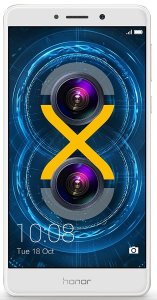
  1. Honor 6X

81nu743xBHL._SL1500_


Specification:-

  Ø 5.5 inch HD display with 1920 x 1080 pixel display resolution.

  Ø Android Marshmallow 6.0

Ø 4 x 1.7 GHz & 4 x 2.1 GHz cortex A53  Octacore Processor kirin             655 Processor.

  Ø    12 MP + 2 MP Rear Camera

  Ø 8 MP selfie camera

  Ø 32 GB internal storage

  Ø 3 GB RAM

  Ø 3,340 mAh battery

           Honor 6X (Gold, 32GB) – 12,999


         Honor 6X (Gold, 64GB) – 15,999


  1. Lenovo Vibe K5 Note

Specification:-

  Ø 5.5 inch IPS screen, with 1080 x 1920 pixel display resolution.

  Ø Android 6.0 OS

  Ø 1.8 GHz Mediateck 6755 Octacore Processor

  Ø 13MP Rear Camera 

  Ø 8 MP selfie camera

  Ø 32 GB internal storage

  Ø 4 GB RAM

  Ø 3,500 mAh battery

  Ø 4G VoLTE

               Lenovo Vibe K5 Note (Grey, 32 GB) (4 GB RAM) – 11,999 

           Lenovo Vibe K5 Note (Grey, 64 GB) (4 GB RAM) – 12,999


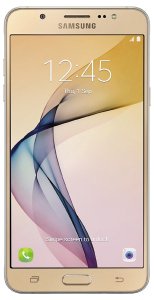
  1. Samsung Galaxy On8

71mtqsPn0HL._SL1500_


Specification:-

  Ø 5.5 inch HD IPS display with 1920 x 1080 pixel display resolution.

  Ø Android Marshmallow 6.0

  Ø 1.6 GHx S5E7580 Exynos 7580 Octacore Processor

  Ø 13 MP Rear Camera

  Ø 5 MP selfie camera

  Ø 16 GB internal memory expandable upto 128 GB.

  Ø 3 GB RAM

  Ø 3,300 mAh battery

  Ø 4G VoLTE

                            Samsung Galaxy On8 (Gold) – 13,490


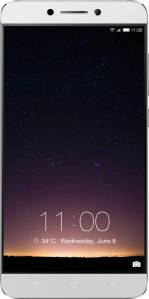
  1. LeEco Le 2

leeco-le-2-le-x526-original-imaeh9dajce9wqvh

Specification:-

  Ø 5.5 inch HD IPS display with 1080 x 1920 pixel resolution.   

  Ø Android  6.0 OS
Ø 1.8 GHz (A72) & 1.4 GHz (A53) Snapdragon 652 Quadcore
Processor

Ø 16 MP Rear Camera with LED Flash,
Ø 8 MP selfie camera
Ø 32 GB internal storage
Ø 3 GB RAM
Ø 3,000 mAh battery
Ø 4G VoLTE

                     LeEco Le 2 (Grey, 32 GB) (3 GB RAM) – 11,999


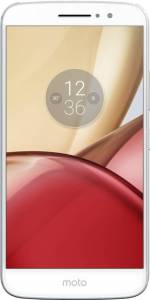
  1. Moto M

motorola-moto-m-xt1663-original-imaep562bebk6hhg

Specification:-

Ø Android 6.0 OS

  Ø Display 5.5 inch, IPS with 1080 x 1920 pixels screen resolution

  Ø 32 GB internal Storage

  Ø 2.2 GHz A53 Mediatek Helio P15 octacore processor

  Ø RAM 3 GB

  Ø Camera 16MP rear and 8MP front

  Ø Battery 3,050 mAh

  Ø Connectivity Dual SIM, 4G

                                   Moto M (Silver, 32 GB) (3 GB RAM) – 15,999

  1. Infocus Epic 1

813ug0POO8L._SL1500_

Specification:-

  Ø 5.5 inch HD display with 1080 x 1920 pixel resolution.

  Ø Android 6.0 OS

  Ø 1.2.1 GHz  MediaTek MT6797 deca Processor

  Ø 8 MP Rear Camera with LED Flash

  Ø 5 MP selfie camera

  Ø 32 GB internal Storage (128 GB expandable)

  Ø 3 GB RAM

  Ø 3,000 mAh battery

  Ø 4G VoLTE

                           InFocus Epic 1 (Gold, 10 Core) – 12,999


  • So these  are the best phones under 15,000 In India.
  • I will update my blog every month as soon as new smartphone is launched.
  • If you have any doubts just let me know by commenting down below .
  • Hope this helps to find the best phone under 15,000.
Android Nougat

zjhl2lgef9cyrql0jfa7kzbw2vucrb5knhfe1td9oxde9g5shnn1i-bv9ettdv9dsbugw0py


Android Nougat


Install-android-nougat.jpg


  • Android 7.0–7.1.1 “Nougat” also known as N is the 7th version of the Android operating system.
  • It was officially released on August 22, 2016, with Nexus devices being the first to receive the update, but LG V20 was the first new smartphone released with Nougat.
  • On June 30, 2016, Google announced that N’s release name would be “Nougat”.
  • Android 7.0 was officially released on August 22, 2016, with the Many Nexus models to receive the update.

Features

1. Multiple Windows View in the Same Screen

  • Nougat has introduces Multi Windows view where you can snap two apps to occupy halves of the screen.
  • You can watch movies and read, write text at the same time.

2. Quicker multi-tasking


  • You can now double-tap the recent apps button to quickly switch between your two most recently used apps.


3.Doze

  • Doze is the new feature that comes in the Marshmallow Operating System.

  • It has a feature called hibernation, it is enable by default on your phones.

  • Phones enter into hibernation mode if it is not use for long period of time.

  • It help your phone to get much more out from your phone battery.


4. Security

  • New version of Android is built with powerful layers of security and encryption to keep your private data private.
  • Few of the latest devices has software updates download in the background, so you won’t have to wait while your device syncs with the latest security tools.
  • Android N can better isolate and protect files for individual users on your device by adding encryption to the file and data of the user.


  1. OS with additional Emoji and Desired languages

  • Android Nougat has over 1500 emoji including 72 new emoji.
  • Also it has multiple local language support setting for using your device with your desire language.

  1. Experience new Gaming Experience

  • Vulkan API is the new gaming interface introduce in Android Nougat.
  • Vulkan API is the high-performance 3D graphics interface that show sharper graphics crystal clear image, videos and gaming effects.

  1. Reply within the Notification

  • Now you can reply to any whatsapp, face book or twitter message within the notification without even opening the apps.
  1.  Data Saver

  • Restrict the user of data device uses with Data Saver option.
  • When Data Saver is turned on, apps in the background won’t be able to access mobile data.

  1. Drag and drop text, images in Multi-window mode

  1. Lock screen gets a wallpaper of its own

  2. Where did that APK come from?

  1. Notification importance setting

  • You can now set the importance level of an app’s notifications to fit your specific use of that app, including allowing an app to ignore your DND settings.
  • With a long-press on a notification, you can view the current importance level.
  • Tap on More Settings where you can turn off the default automatic setting, and adjust its interruption level.
  • As you move the slider, a brief explanation will detail each alert type.
  1. Cancel button for app downloads

  1. Keyboard shortcut helper

BIOS (Basic Input Output System)

zjhl2lgef9cyrql0jfa7kzbw2vucrb5knhfe1td9oxde9g5shnn1i-bv9ettdv9dsbugw0py
BIOS (Basic Input Output System)

  • BIOS is the program a computer’s microprocessor uses to get the computer system started after you turn it on.

  • It also manages data flow between the computer’s operating system and attached devices such as the hard disk, graphic card, keyboard, mouse and printer.

  • BIOS is a chip located on all motherboard that contain instruction of how your system should boot and how it operate.

  • The BIOS include instruction on how to load basic computer hardware & include a test referred as a POST that verifies the computer needs requirement to boot up properly.

  • If the computer does not pass the POST, you will receive a combination of beep indication that indicates malfunctioning within the computer.


POST:

  • POST is a test the computer must complete to verify all hardware is working properly before starting the remainder of the boot process.

  • If the computer passes the POST the computer will often return a single beep and if unsuccessful will create a beep code that indicates the error.


What do you meant by the term ROM BIOS (Read Only Memory BIOS)?

  • Read only means that the Program and data can only be read from it. Therefore Program and data cannot be written to it.

  • Most Computer contain small amount of ROM to stores programs that enable the computer to boots.

  • It is a non- volatile memory and hence it is referred as a permanent data storage area.

  • The BIOS in a PC is stored on a ROM chip located on the motherboard.

  • Early PCs used a ROM BIOS, but PCs today use a flash memory BIOS because it can be updated in place.

  • In order to update a ROM BIOS, the computer case had to be opened, and the ROM chip had to be located and replaced.


How do I get to BIOS in Windows 7?

  • Turn off the computer and wait five seconds.

  • Now turn on the computer and immediately press the F10 key or F1 key  three to four times after you see company logo on display until a BIOS Setup screen opens.
  • In the BIOS Setup utility, do one of the following: On the Main tab, find the BIOS version.

Note: – Different Company models Had Different Keys to go in Bios Screen Option.


What do mean by Dual BIOS?

  • Dual BIOS mean there are two ROM Bios IC Chip present on the Motherboard.

  • A dual BIOS is a computer motherboard that contains a main BIOS and a backup BIOS.

  • This type of setup can help a motherboard recover from any problems encountered during a BIOS update.

  • It also helps protect the BIOS from any potential virus, or any other data corruption that might occur.

View BIOS information at POST

hf

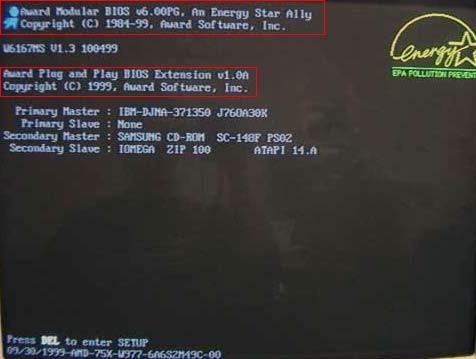
  • The first way is by restarting your computer.
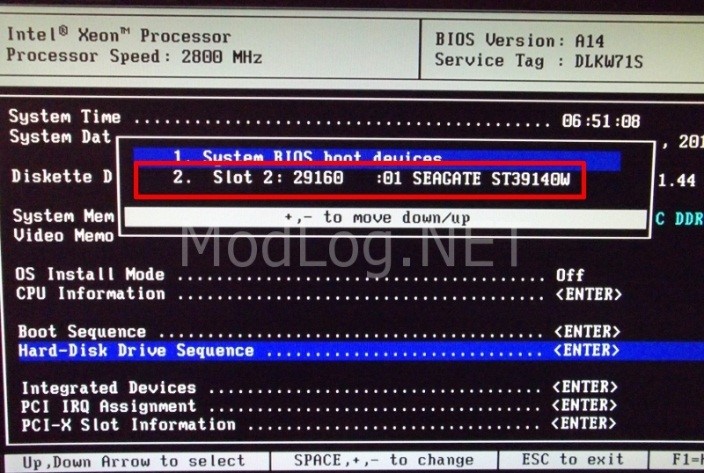
  • When the initial load (also called POST) screen is displayed, the BIOS Type and version is also displayed.
    Tip: If the load screen is displayed for only a few seconds, you can try pressing the Pause/Break key on your keyboard to pause the loading process.
  • The BIOS information is typically found at or near the top of the POST screen.
  • Also, you will see information on what hard drive(s) and CD/DVD drives are installed in your computer.


Through Windows System Information

fhg

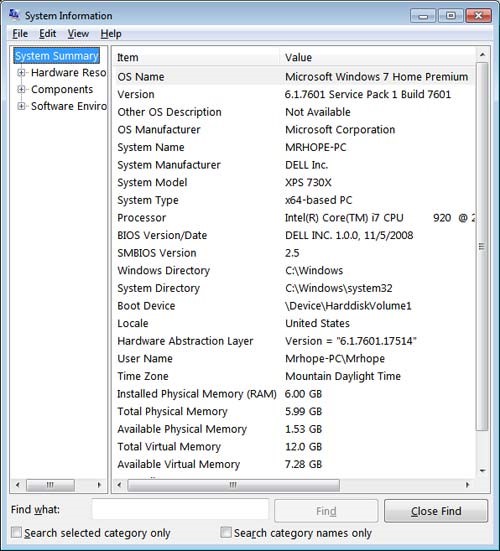
  • The BIOS information is also shown through the Windows System Information.
  • To open this tool click start, Programs, Accessories, System Tools, and then System Information.
  • If you’re running Windows Vista or Windows 7, type System Information in the Start search box.
  • In the System Information window, displaying information about your computer, including the type of BIOS you have and the version, under the System Summary section.
  • As can be seen in the picture below, this computer has a DELL BIOS version 1.0.0 with a Date of 11/5/2008.


Windows Registry


iuy

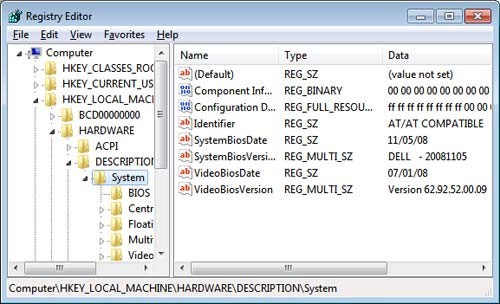
  • You can also find BIOS information in the Windows System Registry.

  • While in the registry realize that improperly changing a setting can affect how Windows operates.

  • To access the System Registry, click start and in the Run or Search box type reg edit in the text field and press enter. In the Windows Registry navigate to the below Registry directory.
    Hkey_local_machine\hardware\description\system

  • Find the sub keys System Bios Date and System Bios Version to see the BIOS and version for your motherboard. As can be seen in the picture below, the BIOS date and version are shown in these two keys.


Types of BIOS: –

  • Single Page BIOS.
  • Multi Page BIOS/ Five Page BIOS.
  • Explorer BIOS.
  • Phoenix BIOS.
  • UEFI BIOS (Unified Extensible Firmware Interface).


  1. Single Page BIOS: –

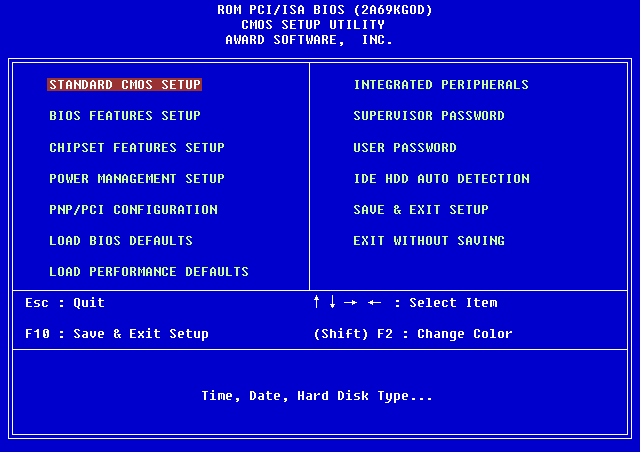
  • In Single Page Mode BIOS all the Option are in one single Page.

  • It can be seen in early 90’s computer.

erw


  1. Multi / Five Page BIOS: –

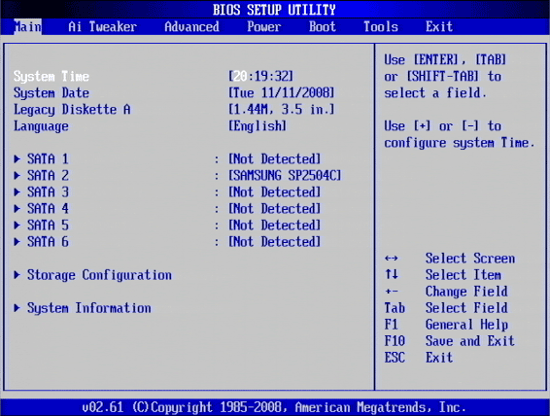
  • Multi page or Five page Mode BIOS has 5 different option namely Main, Advanced, Security, Boot, Exit.

rtre


  1. Explorer BIOS:-

  • This BIOS is Windows Explorer Lookalike.

  • It is the only BIOS where we can use Mouse.

65y


  1. Phoenix BIOS : –

  • Phoenix BIOS is the commonly see BIOS in nowadays new and old Computer.


nm


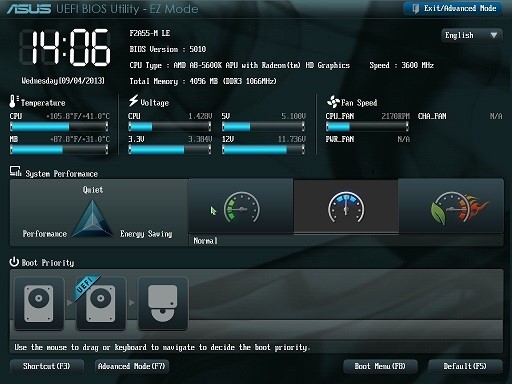
  1. UEFI BIOS (Unified Extensible Firmware Interface): –

  • UEFI Bios is the latest Bios used in new computer.
  • UEFI Bios is mostly used in Windows 7, Windows 8, Windows 8.1 and Windows 10.

  • This bios help the computer to boot up faster than any other bios.

sdfs


gfhf


Hard disk & its types

Hard disk


  • Hard disk is a rigid non-removable magnetic disk with a large data storage capacity.
  • The hard drive is the computer’s main storage media device that permanently stores all data on the computer.
  • The hard drive was first introduced on September 13, 1956 and consists of one or more hard drive platters inside of air sealed casing.
  • Most computer hard drives are in an internal drive bay at the front of the computer and connect to the motherboard using either ata, scsi, or a sata cable and power cable.


Types of Hard disk

  1. IDE (Integrated Device Electronic) or ATA (advance technology attachment).
  2. SATA (serial advanced technology attachment).
  3. SCSI (small computer system interface).
  4. External Hard Drive.
  1. IDE (Integrated Device Electronic) or ATA (Advance Technology Attachment) :
  • IDE is a standard electronic interface used between a computer motherboard’s data paths or bus and the computer’s disk storage devices.
  • The IDE interface is based on the IBM PC Industry Standard Architecture (ISA) 16-bit bus standard, but it is also used in computers that use other bus standards.
  • Most computers which are sold recently, uses an enhanced version of IDE called Enhanced Integrated Drive Electronics (EIDE).
  • We can connect maximum two hard disk to a single controller, or one hard disk and one DVD Drive to a single controller.
  • Speed of IDE hard disk is 100 MB per second.
  • We have to perform Jumper Setting on Hard disk or IDE Optical Drive for connecting two or more Hard disk or Optical Drive.


Setting as a Master:

  • Use this setting if you are installing an additional hard disk drive to a single IDE cable with a hard disk drive Set as Slave, jumper one hard disk drive to Set as Master, and the other to set as Slave. 
  • Use this setting if you are installing an additional hard disk drive to a single IDE cable and the Cable Select setting is not recognized.

       Set as Slave:

  • Use this setting if you are installing an additional hard disk drive to a single IDE cable with a hard disk drive Set as Master, jumper one hard disk drive to Set as Master, and the other to set as Slave. 
  • Use this setting if you are installing an additional hard disk drive to a single IDE cable and the Cable Select setting is not recognized.

       Cable Select:

  • This setting is the default setting for pata / ide hard disk drives. 
  • With the Cable Select jumper setting, the BIOS determines whether a hard disk drive is Set as Master or Set as Slave by its position on the IDE cable. 
  • If the hard disk drive jumper is set to Cable Select and is connected to the black connector on the end of the IDE cable, it is recognized as Set as Master for that pata controller. 
  • If the hard disk drive jumper is set to Cable Select and is connected to the grey connector on the middle of the IDE cable, it is recognized as Set as Slave for that pata controller.

Note: When using Cable Select, your system must meet the following conditions:

  • Your systems host controller must support Cable Select.
  • Your hard drives must support Cable Select.
  • Your cable must support Cable Select.


  1. SATA (Serial Advance Technology Attachment): 

ewfg

  • Serial Advanced Technology Attachment, often abbreviated SATA , is a serial link – a single cable with a minimum of four wires creates a point-to-point connection between devices.
  • One of the main advantages of Serial ATA is that the thinner serial cables facilitate more efficient airflow inside a form factor and also allow for smaller chassis designs.
  • As an evolution of the older Parallel ATA physical storage interface, SATA host-adapters and devices communicate via a high-speed serial cable.
  • Several advantages over the older interface: reduced cable size and cost, native hot swapping, faster data transfer through higher signaling rates.
  • We can connect n number of sata hard disk or Optical drive depends upon the number of sata port available on the motherboard.
  • Sata data connector has 7 pins whereas Sata power connector has 15 pins.
 Standard  Data connector Pins Connections
Pins Similar Function
1 1st Ground
2 2nd A+ (transmit)
3 2nd A- (transmit)
4 1st Ground
5 2nd B – (receive)
6 2nd B + (receive)
7 1st Ground
—- —– Coding Notch


             Standard Power Connector Pins Connections
Pins Similar Function
—– Coding Notch
1 3rd      3.3 Volts Power
2 3rd
3 2nd Enter/exit Power Disable (PWDIS) mode
4 1st  

Ground

5 2nd
6 2nd
7 2nd  

5 Volts Power

8 3rd
9 3rd
10 2nd      Ground
11 3rd Staggered spin up/activity
12 1st      Ground
13 2nd  

12 Volts Power

14 3rd
15 3rd


  • Speed of Sata drive according to their version:
  1. Sata 3.2 16 Gbit/s
  2. Sata 3.0 6 Gbit/s
  3. Sata 2.0 3 gbit/s
  4. Sata 1.0 5 Gbit/s

3. SCSI (Small Computer System Interface)


rger

  • Small Computer System Interface is a set of standards for physically connecting and transferring data between computers and peripheral devices.
  • SCSI is capable of supporting eight devices, or sixteen devices with Wide SCSI.
  • SCSI is a standard for parallel interfaces that transfers information at a rate of eight bits per second and faster, which is faster than the average parallel interface.
  • SCSI-2 and above supports up to seven peripheral devices, such as a hard drive, CD-ROM, and scanner, that can attach to a single SCSI port on a system’s bus.


  1. External Hard Disk. 


  • External HDD typically connect via USB; variants using USB 2.0 and Others interface generally have slower data transfer rates when compared to internally mounted hard drives connected through SATA.
  • Plug and play drive functionality offers system compatibility and features large storage options and portable design.
  • External HDDs are usually available as pre-assembled integrated products, but may be also assembled by combining an external enclosure (with USB or other interface) with a separately purchased HDD.
  • They are available in 2.5-inch and 3.5-inch sizes; 2.5-inch variants are typically called portable external drives, while 3.5-inch variants are referred to as desktop external drives.

Network and its Types

  • Network:

A computer network or data network is a telecommunications network that allows computers to exchange data.

In computer networks, networked computing devices pass data to each other along data connections.

The connections (network links) between nodes are established using either cable media or wireless media.

The best-known computer network is the Internet.


  • Internetwork:

Internetworking is the practice of connecting a computer network with other networks through the use of gateways that provide a common method of routing information packets between the networks.

The resulting system of interconnected networks is called an internetwork, or simply an internet.

Internetworking is a combination of the words inter (“between”) and networking; not internet-working or international-network.


  • Intra Network:

An intranet is a computer network that uses Internet Protocol technology to share information, operational systems, or computing services within an organization.

This term is used in contrast to extranet, a network between organizations, and instead refers to a network within an organization.

Sometimes, the term refers only to the organization’s internal website, but may be a more extensive part of the organization’s information technology infrastructure, and may be composed of multiple local area networks.

The objective is to organize each individual’s desktop with minimal cost, time and effort to be more productive, cost efficient, timely, and competitive.


  • Extranet:

An extranet is a computer network that allows controlled access from the outside, for specific business or educational purposes.

In a business-to-business context, an extranet can be viewed as an extension of an organization’s intranet that is extended to users outside the organization, usually partners, vendors and suppliers, in isolation from all other Internet users.

In contrast, business-to-consumer (B2C) models involve known servers of one or more companies, communicating with previously unknown consumer users.

 An extranet is similar to a DMZ in that it provides access to needed services for channel partners, without granting access to an organization’s entire network.


  • Topology:

Topology means structure of Network.

Types of Networks:

  1. Single Node Topology

network-topologies-5-728

2. Bus Topology

bus-topology

  • Easiest network topology for connecting computers or peripherals in a linear fashion.
  • Requires less cable length than a star topology.
  • It works well when you have a small network.

    3. Ring Topology

    single-ring-topology

  • A network server is not needed to control network connectivity between each workstation.
  • All data flows in one direction, reducing the chance of packet collisions.
  • Data can transfer between workstations at high speeds.
  • Additional workstations can be added without impacting performance of the network.
  1. Star Topology

    220px-star_topology

  • As compared to Bus topology it gives far much better performance, signals don’t necessarily get transmitted to all the workstations. A sent signal reaches the intended destination after passing through no more than 3-4 devices and 2-3 links.
  • Performance of the network is dependent on the capacity of central hub.
  • Easy to connect new nodes or devices. In star topology new nodes can be added easily without affecting rest of the network. Similarly components can also be removed easily.
  •  Centralized management. It helps in monitoring the network.
     Failure of one node or link doesn’t affect the rest of network. At the same time its easy to detect the failure and troubleshoot it.


  1. Mesh Topology

    mesh-topology

    1) Data can be transmitted from different devices simultaneously. This topology can withstand high traffic.
    2) Even if one of the components fails there is always an alternative present. So data transfer doesn’t get affected.
    3) Expansion and modification in topology can be done without disrupting other nodes.


  1. Hybrid Topology

    index

  • Hybrid, as the name suggests, is mixture of two different things.
  • Similarly in this type of topology we integrate two or more different topologies to form a resultant topology which has good points(as well as weaknesses) of all the constituent basic topologies rather than having characteristics of one specific topology.
  • This combination of topologies is done according to the requirements of the organization.


  1. Tree Topology

    248198418

  • A tree topology is a special type of structure in which many connected elements are arranged like the branches of a tree. For example, tree topologies are frequently used to organize the computers in a corporate network, or the information in a database.
  • In a tree topology, there can be only one connection between any two connected nodes. Because any two nodes can have only one mutual connection, tree topologies form a natural parent-child hierarchy.


  • Network Device:

Equipment’s that connect directly to a network segment is referred to a device.

These devices are broken up into two classification:

  1. End-User Device

These are the device that include computer, printer, scanner, and other device that provides service directly to user.


  1. Network Device

These are the device that include all device that connects end-user device together to allow them to communicate.


To connect same device (Cross Crimping):

gjy1qoa

Eg: Hub to Hub or Switch to Switch.


Orange white                                       Green white

Orange                                                  Green

Blue white                                            Blue white

Green                                                    Orange

Green white                                         Orange white

Blue                                                        Blue

Brown white                                         Brown white

Brown                                                    Brown


To connect different device (straight crimping):

ethcable568b

Eg: Hub to PC or switch to PC


Orange white                                        Orange white

Orange                                                    Orange

Blue white                                              Blue white

Green                                                      Green

Green white                                          Green white

Blue                                                        Blue

Brown white                                        Brown white

Brown                                                    Brown


Tips for Increasing Smart Phone Battery Life.

maxresdefault

Useful

Tips to increase your Mobile battery life?

  • Android Phone are powerful but it’s tough to go much longer than a day without charging your phone.
  •  A number of factors have conspired to reduce the battery life of your phone over the past several years.
  • Faster Quad-Core Processor, thin & slim Designs, larger and brighter Amoled display, Wi-Fi & GPS and other software that runs in the background, all these are responsible for draining your phone battery.
  • Now a days the move of networks from 2G to 3G and now from 3G to 4G LTE has become one of the reason for less battery life.
  • Many people goes for the portable USB power banks, which can be used to charge your phone on the go.
  • My aim is show you how to reduce your Mobile power consumption and increase the battery life of your mobile phones.

Here are Some Tips that will Surely Benefit You to Increase your Smartphone Battery Life

  1. Turn Your Smartphone OFF when not in Use:-

power-off

  • This is the simplest and the most effective ways of conserving your smartphone battery power.
  • You can switch off you phone when you are in no reception zone or you are in sleep or you don’t want to answer the phone are office hour.
  • This will save a quite a good amount of energy in your phone battery.
  1. Avoid the Crappy Method of Full Charging & Discharging

650x300xbattery-levels-jpg-pagespeed-gpjpjwpjjsrjrprwricpmd-ic-7a5ucdpjkn

  • Smartphones battery are made up of either Lithium-ion or Lithium Polymer.
  • The main advantage of Lithium-ion battery is that you can charge them at any time at any level.
  • You don’t have to drain the battery completely, then charge it to 100 percent.
  • Lithium battery which are used in most of the smartphone are designed to be charged early and often.
  • Full Charging – Discharging method goes for only Nickel based batteries.
  • Letting your Lithium Battery too low or fully discharged can surely damage your battery.
  1. Turn Off the Phone’s Back Light
  • I know the back light is what makes the smartphone display easier to operate in bright shinny light or outside.
  • Reduce the amount of time to leave the back light on, usually 5 seconds is sufficient.
  • Smart Phone with ambient Light Sensor has the ability to turn off the back light of the phone in the bright condition and enables it in the dark.
  1. Avoiding using Unnecessary Feature

turn-off-wifi-bluetooth-etc

dfg


  • The moment you know you battery is about to die in couple of minutes. Don’t use camera to click photos or use Internet for surfing or downloading.
  • Smart Phones Camera Flash light can drains amply amount of energy from the battery.
  • Turn off Bluetooth, it will drain your battery very quickly. Turned it ON only when you need it.
  • Turn off WI-FI, GPS, and infrared, when you don’t want use it. Turned it ON when you need to use it.
  1. Reduce the Brightness of the Display to lowest 

    screenshots-android-batterybrightness


  • Never check the option auto for brightness, uncheck the auto option & manually turn the brightness to lowest setting according to your choice.
  • Use dark colored or black wallpaper for your phone, it can increase the battery life.
  • Phones with Amoled screen should use black wallpaper, as it required less power to light them up. (you can download black wallpaper from Google Play Store)
  • Never use live wallpapers or animated picture for your phone background it will drain the battery faster.
  • This is one of the best ways to improve your battery life, because the screen is one of the biggest battery suckers.
  1. Adjust Your Network Setting  ddddfdfd
  • Use 3G or 2G network rather than 4G (LTE) network all the time, it will drain the battery quicker than you expected.
  • If the 4G signal is weal or there is no signal at all turned it off.
  • Turn off the NFC and Mobile data when you don’t need them.
  • Turn off the Phone, when you are in no cell service as your phone will constantly find a mobile tower to which it can connect for. This is drain large amount of energy from your phone battery.
  1. Doze
  • Doze is the new feature that comes in the Marshmallow Operating System.
  • It has a feature called hibernation, it is enable by default on your phones.
  • Phones enter into hibernation mode if it is not use for long period of time.
  • It help your phone to get much more out from your phone battery.
  1. Use Greenify index
  •  Greenify is app that optimize the performance of your phone and can increase the phone battery life significantly.
  • This app allows user to put other apps into hibernation when they are not in use. This will boost the battery performance.

9.  Set your ‘Do Not Disturb’ or ‘sleep’ schedule

android-l-do-not-disturb

  • Set sleep time or blocking mode to switch off Wi-Fi and mobile data when you don’t need them.
  •  If your phone is basically off limits at work, set your device to not ring, vibrate or connect to the internet while you’re at work.

10.  Don’t get Fooled by widgets

images

  • Never use a widgets that you don’t need and especially those one that required internet connection.
  • Never keep multiple widgets on your home screens (Social Networking, or Mails) that required continuous sync. It will drain your phone battery much faster.

11.Don’t fall into the auto-sync trap

accounts-sync

  • Turn off the auto sync option for your Google account, if you don’t need your Google account to sync every time you connect on internet.
  • Same goes for social networking sites, just turn the sync option on when you actually want to use the app.

12.  Explore the battery saving features on your phone
er

  • Almost all ROM have different setting in the menu to turn on the battery saver
    option that will optimize the battery life.
  •  Make us of the inbuilt battery saver mode for your phone, if incase it’s not install
    then download it from Play store.

13.  Update all installed app

  • Application often get new update to use less battery power, that why we have to update our install apps whenever required.
  • Check for app updates in Google Play by hitting the menu key and going to My Apps.
  1. Turn OFF the Background Running app
  • Many apps that are running in the background is using processing power from battery.
  • Even if you are not using that app at that time they are running in background using the energy from battery to run.
  • Android is pretty good at managing these apps and automatically closing out ones that aren’t used for an extended period of time.
  1. Keep the battery cool.
  • Battery will last longer if we used near room temperature.
  • Avoid leaving your phone in hot temperature or in direct sunlight.
  • Most importantly, check the battery while it’s charging. If it seems excessively hot, then your charger may be malfunctioning.

Battery Failure Indicators

Know how to avoid battery failure:

  1. The usable time after recharging is shortened.
  2. Charge your smartphone with the charger that is compatible for your device.

  3. The battery becomes unusually warm during a recharge cycle.
  4. The battery becomes unusually warm during phone use.
  5. The battery case may become swollen. This is detectable by viewing the phone-side of the battery case.
  6. The case of a healthy battery is flat, and the battery will not a spin easily, whereas the faulty battery will swollen from the center & spin easily on plain surface.

Installation of Ubuntu Operating System


Minimum Requirement for Installing Linux Ubuntu:

  • 700 MHz processor (about Intel Celeron or better)
  • 512 MB RAM (system memory)
  • 5 GB of hard-drive space (or USB stick, memory card or external drive but see Live CD for an alternative approach)
  • VGA capable of 1024×768 screen resolution
  • Either a CD/DVD drive or a USB port for the installer media.
  • Internet access is helpful

Steps For Installing Ubuntu Operating System:-

  1. First thing you have to check whether your Computer is full filing the minimum

     Requirements for the Installation of Ubuntu Operating System.

  1. Backup all your important data in any External hard drive or DVD disks.

  2. Insert Ubuntu OS DVD and restart your Computer.

  3. As soon as you see HP Logo in the Screen Press F9 key thrice, So that the Computer will opens One Time Boot Menu

NOTE: Different PC have different key combination to go in Boot Menu Option. Example – HP Computer had F9 or F11 key for Boot Menu Option.
Wherelse Dell, Acer, Asus, Samsung, and Lenovo had F11 or F2 for Boot Menu Option.

  1. Once the Boot Menu Window Popup, Navigate and Select CD/DVD ROM option and Press Enter.

  2. Ubuntu OS Setup Screen will appear.

  3. Select the Language to Install the Setup. If you want to use Ubuntu OS once then click on Try.
    Oresle Click on Install Ubuntu to continue the Setup Installation.

  4. Tick both the option (download update and Install third party software) and click on Continue

  5. Select something else Option for manually creating the partition for Ubuntu OS and click on Continue.

  6. Now we have to create a partition table for our drives. Select the partition /dev/sda & click on New Partition Table and Click on Continue.

  7. After creating the partition table, we will now start creating the drives for installing OS.

  8. Select the free space and click on + sign at the bottom. Create partition window will popup.

  9. Create a / partition of approx. 10GB , /boot partition of approx. 15GB and Swap partition of approx. 8 GB and click OK.

  10. After successfully creating all the three partition, we will click on Install Now & then Click on Continue.

  11. Select the proper location from the maps and click o Continue.

  12. Select the Keyboard Layout that is suitable for your Computer and Click on next.

  13. Type your Name, give a name to your PC, type a user name and Password for your PC then click on Continue.

  14. Setup will start installing files. This will take around 10-15 minutes.

  15. After setup finished installing all the files, click on restart now to restart your pc.

  16. As soon as you see Ubuntu logo on screen remove the Ubuntu DVD media from your Computer DVD writer and click Enter.
  1. Type your user id and password and press enter.

  2. Setup has finished installing Ubuntu Operating system on your computer.


What is COMPUTER ?

Computer is an electronic device that is designed to work with Information.

The term computer is derived from the Latin term ‘computare’, this means to calculate or programmable machine.

Computer cannot do anything without a Program. It represents the decimal numbers through a string of binary digits.

Charles Babbage is called the “Grand Father” of the computer. The First mechanical computer designed by Charles Babbage was called Analytical Engine. It uses read-only memory in the form of punch cards.

Computer is an advanced electronic device that takes raw data as input from the user and processes these data under the control of set of instructions (called program) and gives the result (output) and saves output for the future use. It can process both numerical and non-numerical (arithmetic and logical) calculations.

In simple word, Computer is an Electronic device that automatically performs arithmetic or logic operation on information input, process that input and provides an output according to the performed set of instruction stored with it.

Concept of Computer

Hardware, Software and Firmware together makeup a Computer System.

Hardware: – Hardware describe all the physical components used for the assembly the
Computer System.

Software: – Software constitute the instruction on which the Computer act which thus makes the
Computer usable.

Firmware: – Firmware are programs that are permanently written and stored in computer
memory (ROM).
Types of Computer:

Computer are of four types namely.

1. Super Computer
2.Main Frame Computer
3. Mini Computer
4. Micro Computer.


A)
Super Computer

Super Computer are the most powerful type of Computer.

They are used for high speed processing of data.

The only disadvantage of Super Computer is it generates large amount of heat so we
require cooling device for it.

The supercomputers are very expensive and very large in size. It can be accommodated in large air-conditioned rooms; some super computers can span an entire building.

Presently, China’s “Tianhe – 2” is the world’s faster Supercomputer.

The Tianhe – 2 can perform 100 Peta-flops, i.e. quadrillions of floating point operations per second.

Uses of Supercomputers

  • Space Exploration.
  • Earthquake studies.
  • Weather Forecasting.
  • Nuclear Weapon testing.

Popular Supercomputers

  • IBM’s Sequoia, in United States
  • Fujitsu’s K Computer in Japan
  • IBM’s Mira in United States
  • IBM’s SuperMUC in Germany
  •  NUDT Tianhe-1A in China

B) Main Frame Computer
Main Frame Computer are not as powerful as Super Computer, but they are capable
of great processing speeds and data storage.

Government organizations uses Mainframes to run their business operations.

The Mainframe computers can be accommodated in large air-conditioned rooms because of its size.

Super-computers are the fastest computers with large data storage capacity, Mainframes can also process & store large amount of data.

Banks educational institutions & insurance companies use mainframe computers to store data about their customers, students & insurance policy holders.


Popular Mainframe computers

  • Fujitsu’s ICL VME
  • Hitachi’s Z800

C) Mini Computer

Mini Computer is also known as Mid-range Computer, are refrigerator – sized
machines.

These are small machines and can be accommodated on a disk with not as processing and data storage capabilities as super-computers & Mainframes.

These computers are not designed for a single user. Individual departments of a large company or organizations use Mini-computers for specific purposes.

Medium- sized companies or Department of large Companies typically use them for specific purpose.

For e.g.: Production Department use Mini Computer to monitor certain manufacturing

process and assembly line operation.

Popular Minicomputers

  • K-202
  • Texas Instrument TI-990
  • SDS-92
  • IBM Mid-range computers

D) Micro Computer

Micro Computer are the least powerful and yet the most widely used and fastest
growing type of computer.

The Micro-computers are specially designed for general usage like entertainment, education and work purposes.

Well known manufacturers of Micro-computer are Dell, Apple, Samsung, Sony and Toshiba.

There are 4 types of Micro Computer namely. 1. Desktop 2. Notebook 3. Tablet PC
4. Handheld Computer.

1. Desktop:
Desktop PC are small enough to fit on top of or alongside a desk yet are too big to
carry around.

2. Notebook:
Notebook PC also known as Laptop PC.

They are Portable, Lightweight and fit into most briefcases.

3. Tablet PC:
Tablet PC is a type of Notebook Computer that accept your handwriting.

This input is digitized and converted to standard text that can be further processed by
program such as word processor.

4. Handheld Computer:
Handheld Computer are the smallest and are designed to fit into the palm of one
hand.

These system contain an entire computer system, including the electronic components,
secondary storage, and input & output device.

PDA & Smart Phones are most widely used handheld PC.

WINDOWS 7 OPERATING SYSTEM INSTALLATION


Minimum Requirement for Installing Windows 7:

  • 1 gigahertz (GHz) or faster 32-bit (x86) or 64-bit (x64) processor
  • 1 gigabyte (GB) RAM (32-bit) or 2 GB RAM (64-bit)
  • 16 GB available hard disk space (32-bit) or 20 GB (64-bit)
  • DirectX 9 graphics device with WDDM 1.0 or higher driver


Steps For Installing Windows 7 Operating System:-

  1. First thing you have to check whether your Computer is full filing all the     Requirements for the Installation of Windows 7 Operating System.
  1. Backup all your important data in any External hard drive or DVD disks.
  2. Insert Windows 7 DVD and restart your Computer.
  3. As soon as you see HP Logo in the Screen Press F9 key thrice, So that the Computer will opens One Time Boot Menu

NOTE: Different PC have different key combination to go in Boot Menu Option. Example – HP Computer had F9 or F11 key for Boot Menu Option.
Wherelse Dell, Acer, Asus, Samsung, and Lenovo had F11 or F2 for Boot Menu Option.

  1. Once the Boot Menu Window Popup, Navigate and Select CD/DVD ROM option and Press Enter.
  2. Press any to Key to Start the Setup Installation.
  3. Windows Loading Screen will appear.
  4. Select the Language to Install the Setup, Select the Keyboard Input Method and press next.
  5. License Agreement Page will open, tick the small box I accept the license Term and Press Next.
  6. Activate Product key Window will shows up. This is the 25-character key that came with your copy of Windows.If you have the Key then Enter it and Click Next oresle Check the “Automatically activate Windows when I’m online” box to have Windows automatically verify your key the next time it is connected to the internet.
  7. Click on Custom (advanced) option for fresh installation of Windows 7 Operating System.Select the Unallocated space and Click on Next. Setup will automatically create a drive format that drive and install the Setup in that partition.
  8. In case you manually want to create Drive partition then, Select the Unallocated
    Space and Click on Drive Option (advanced), Click on New and Enter the Number in the blank box in MB (Eg: 50000 MB) and Press Enter.
  9. Installing Windows Screen will Popup.
  10. Press Shift + F10 key to open Command Prompt, then type taskmgr to open taskbar.
  11. Right Click on Install Windows and select Go to Process.
  12. Right Click on Set Priority and Set it to High.
  13. Close the Task Manager and Command Prompt.
  14. Wait for all the Process to Complete. Computer will restart several times during
  15. Type the User name and Password for your Windows Account.
  16. Select the Time Zone according to your Location and Select the Date & Time and
    Click Next.
  17. Select the Home Network to Connect to Internet.
  18. Wait for the Setup to Finish.
  19. Setup has finish installing Windows 7. Now you can use your Computer with
    Windows 7 operating system installed.